
41% of Dutch employees work from home at least sometimes – that’s more than in any European country. Sitting in an ergonomic position when working from home isn’t as as easy as at the office, where tables and chairs are often better. Often issues arise when working at the home workstation rather than the office. Yet often little attention is paid to good posture when working from home. Changing that is my mission!
Every body is different, and (almost) every home workstation is different too. There’s no such thing as “the perfect posture” that you can learn from a picture. A tip like “use the armrests of your office chair”, which I often read, can actually lead to issues for some people. Most people don’t have equipment that lets you adjust everything “perfectly”, and in my view that’s not necessary at all.
That said, it’s definitely possible to give some general advice for a sitting better when working from home that will work for most people. If you do have complaints, though, get in touch with an ergonomist or occupational therapist!
1. Change position regularly
However badly you sit, simply moving and changing position often enough can prevent complaints. I regularly meet people who’ve sat in an impossible posture for decades without any issues at all. Almost without exception, they’re people who exercise a lot, or take a regular walk during the working day.
Get up at least every 45 minutes and try to get your circulation going as much as possible. Drink plenty of water so you need to visit the toilet frequently. Or use the toilet on a different floor, if you have one!
Alternating between sitting, standing and walking while working from home is also a good idea for most people. Standing for too long at a stretch can be just as demanding. Build it up gradually, but never work standing only. And “walking meetings”? Yes please – take a call without video while going for a walk!
2. Make sure your forearms are supported

If your office chair has height-adjustable armrests, it can be nice to use them. Most people, though, don’t have a “proper” office chair at home, or find it more comfortable to rest their forearms on the desk instead. That works just as well!
If you use the desk to support your arms, make sure your elbows rest on the desk too. Remove the adjustable armrests from your chair, or lower them so far that you can pull your chair all the way in, until your stomach touches the edge of the desk.
This forces you to sit well when working from home: a straight back, relaxed shoulders, no arching your back just to reach your keyboard. You’ll also need to slide your screen, keyboard and mouse well forward. You must feel no tension in your shoulders and don’t have to round your upper back to find support.
3. Place your feet flat on the floor

Generally speaking, it’s better not to cross your legs or tuck your feet under your chair. Place your feet slightly in front of your knees on the floor. Can’t your feet reach the floor flat? A footrest (or a book, or anything else flat) can help. Or wear shoes with a high heels 😀.
Want to know exactly why it matters to sit symmetrically and well-anchored on the ground? Read more about the concept of base of support.
4. Set your desk to the right height
Make sure you’re sitting comfortably, with your forearms able to stay at a comfortable angle of around 90°. There should be enough room underneath the desk for your thighs.
If the desk you’re working at is too high, you could consider shortening it. Yes, some clients have – on my advice – actually taken a saw to their table rather than buy a new one 🙂 Or you can raise your chair and use a footrest.
5. Position your screen higher than you’re (probably) used to

Position your screen directly in front of you. Looking straight ahead, your gaze should land just above the middle of your screen. Using multiple screens? Position the tops of the different screens at the same height. You can raise your screen with a monitor riser or laptop stand, but a crate, a stack of books or even a shoebox works just as well!
As a guideline, keep 60 to 80 centimetres (an arm lenght or so) between your eyes and the screen. What matters most is that you can read everything comfortably.
Here I’ve written about some more specific tips to adjusting your monitor to the correct height (and preventing neck pain).
6. Use a separate keyboard and mouse
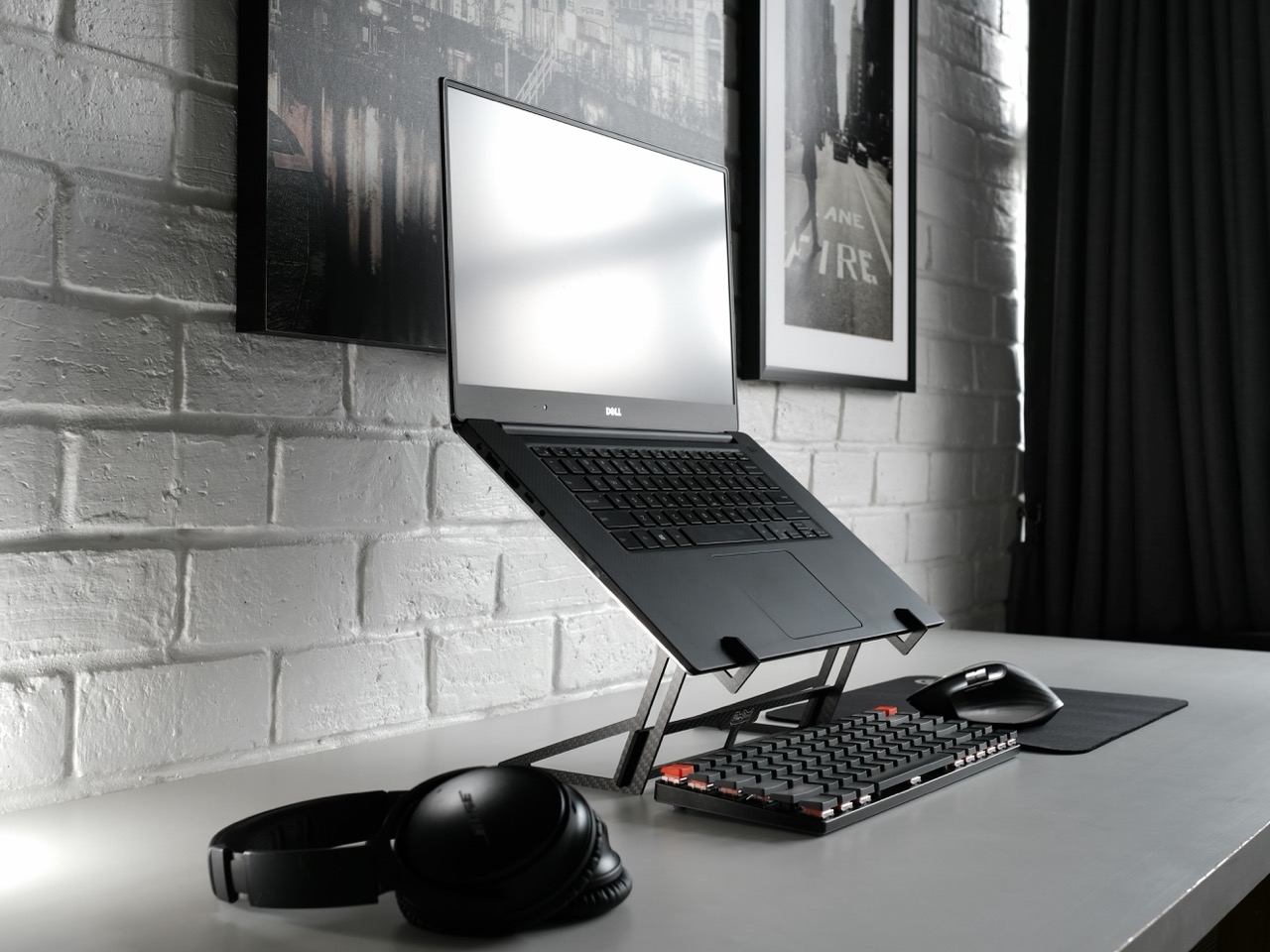
Most people who work from home do so when sitting behind a laptop.
A laptop screen is essentially always positioned too low to be able to sit in an ergonomic position. If when working from home you use a laptop for more than 2 hours a day, Dutch law requires you to use a separate keyboard and mouse (and of course your laptop needs raising too – see tip 5). But even if you use your laptop for less time than that, I’d genuinely recommend it.
Extra tip 1) Use the keyboard as much as possible and the mouse as little as possible. If you sometimes get wrist or hand complaints, investing time in setting up keyboard shortcuts for actions you’d normally use the mouse for can help a lot.
Extra tip 2) Be careful with ergonomic mice. Used incorrectly, they can actually make complaints worse.
7. Lay the keyboard flat

Some keyboards have little feet that tilt the keyboard upward. Don’t use them! This keeps your wrists in a natural position and avoids pinching tendons and nerves.
8. Put a cushion or towel in the small of your back
If you’re not sitting on an office chair with adjustable lumbar support when working from home, it can sometimes help to put something in the small of your back to keep your spine straight.
An office chair with adjustable lumbar support supports the curve in your lower back (your lordosis). Without it, you’ll eventually slump into a rounded lower back. That often doesn’t even feel unpleasant at the time, but it can catch up with you later.
Fortunately, this is easy to fix yourself. Roll up a towel (or grab a small cushion) and place it in the curve of your lower back, just above your waistband. Not too thick. Lean back gently. Do you feel support exactly in your lower back, without being tipped forward? Then it’s set correctly.